> For the complete documentation index, see [llms.txt](https://academy.decisionrules.io/llms.txt). Markdown versions of documentation pages are available by appending `.md` to page URLs; this page is available as [Markdown](https://academy.decisionrules.io/spaces/users-in-spaces/invitations.md).
# Invitations
How to invite your colleagues to collaborate
Two heads are better than one. Invite your colleagues and teammates you want to collaborate with to your space.
## 1. You want to invite other users
To invite other users to your space, log into your account and click on the **+ Invite Teammates** button at the top right-side corner of your Space. A window will open with the title 'You are Inviting into {name} space'.
{% hint style="info" %}
*Note that plans have limit for number of users you can invite to your space.*
*More information about Tariff Limits can be found* [*here*](https://www.decisionrules.io/pricing/public-cloud) *and* [*here*](https://app.decisionrules.io/profile)*.*
{% endhint %}
To invite another user, simply complete the configuration process. First, select any users with whom you have shared spaces previously; if you are inviting a new user, select "New User". Insert their email address of the person you want to collaborate. Select the role you want to assign to the new user and confirm with the “Invite” button. Invitation will be sent to the email address provided.
Invite a user to you space
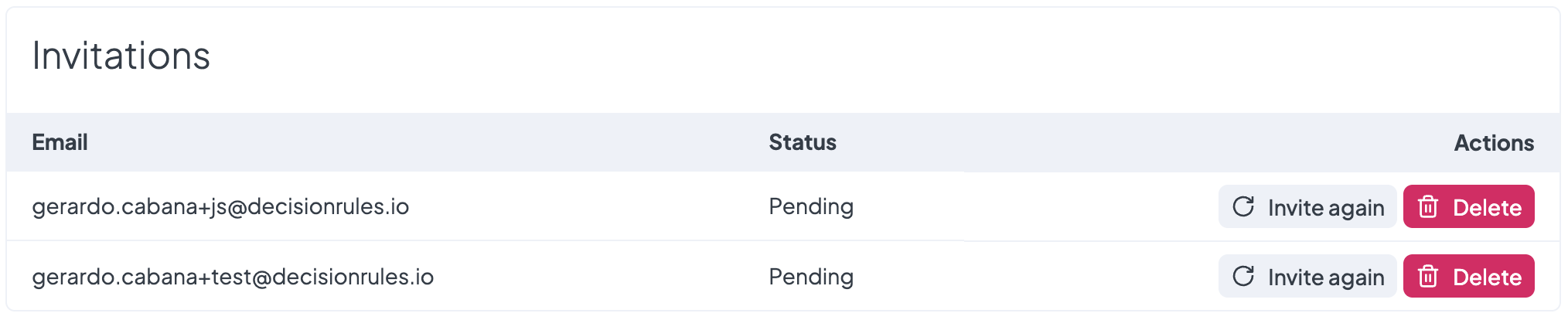
Every new invitation will appear at the bottom of the page, where you can manage them and track their status. Once a user accepts your invitation, the status of the invitation is no longer "pending" and the user is moved to 'Users' where you can edit their role.
To delete a pending invitation or user from the space, click on the  button next to the user’s name.
Delete a user from your space
Delete a pending invitation
## 2. You are invited
After another user invites you to the space, an invitation arrives in your inbox.
Space invitation in your inbox
Inside is a link that will take you to the decisionrules.io login page. After logging in, you gain access to the space you were invited to.